Note: The version of the screenshots below may differ from yours, but the content of the article applies to your version as well.
Here is how you can fix scaling and blurriness issues with Heredis display :
- Open Heredis.
- Right-click the app in the taskbar.
- Right-click the name of the app and select Properties.
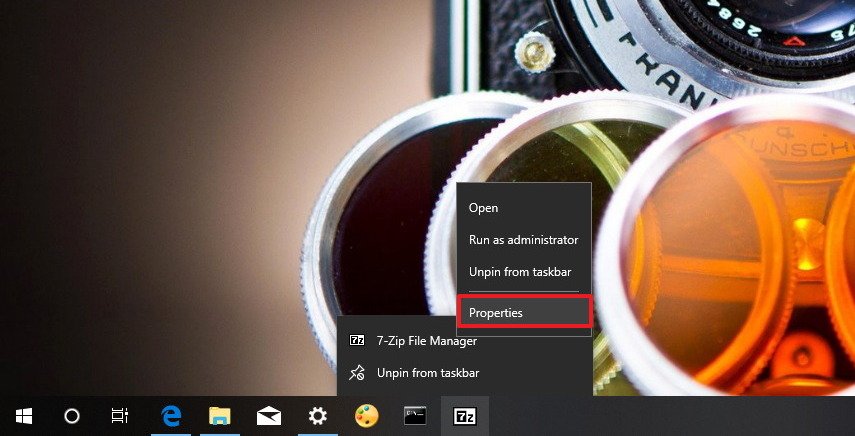
- Click on the Compatibility tab.
- Under "Settings," click the Change high DPI settings button.Quick Tip: If you want to apply the settings for all accounts configured on your computer, click the Change settings for all users button, and then click the Change high DPI settings button.
- Under "Program DPI," check the Use this setting to fix scaling problems for this program instead of the one in Settings option.
- Using the available drop-down menu, specify whether an app should use the display DPI settings when you sign in to Windows or when opening the app. (Usually, you want to use the default option.)
- Click OK.
- Click Apply.
- Click OK.
Once you complete these steps, relaunch the app to start using the changes. In the future, if the app becomes blurry, Windows 10 will use the settings you specified to render the app correctly the next time you open it.
Default scaling settings override
It's worth noting that in step No. 5, you can also use the High DPI scaling override options to change the default scaling behavior for a program that is blurry from the very beginning.
After enabling the option, select the System (Enhanced) option using the drop-down menu to make the text and interface look crisper, and resize elements correctly. (Some parts of the app may continue to look a little blurry, but it's still a significant improvement.)
If the "System (Enhanced)" option isn't working on a particular app, you can also try two additional options, including:
- Application — Forces the app to run on a per-monitor DPI awareness.
- System — Stretches the interface, bitmap elements, and text will be blurry. This is how Windows handles scaling by default.
These new improvements work for apps running on your primary monitor. If you have a multi-monitor setup using different scaling settings and using the extended mode, applications may still look blurry on the other monitors.