There are different methods to send your genealogy file from a MacOS computer to another device.
-
USB Synch
This feature sends your genealogy from Heredis software to the same software installed on another computer via a USB stick.
To display the USB synchronization instructions, you can click on this line
Connect the USB stick to your computer, then open the Heredis software and open your genealogy file.
Click on File -> Sync via USB :
Select the USB device and click on "Send" :
Eject the USB key and plug it into the computer that will receive the genealogy.
Open Heredis on the home page and wait a moment (about 30 seconds)
A message will tell you that a synchronization is available.
Click on Yes. If the file has never been transferred to this computer, you will need to select a location to save the genealogy.
At the end of the procedure, the genealogy will be automatically opened on Heredis.
-
Send a genealogy file in Heredis format by email
This method is used to send your genealogy in Heredis format to another Windows or Mac computer that has the same or an earlier version of Heredis as you do. This is an alternative to USB synchronization.
To display the instructions for sending a Heredis file by email, you can click on this line
Step 1 : Compress the genealogy file
On Windows, the files are placed by default in Documents -> BSD Concept -> Heredis -> Heredis Files.
If it is not there, you can follow the instructions given in this article to locate it : Click here
Compress the .hmw folder following the instructions given in this article : Click here
Step 2 : Send the email
Open your mailbox (Gmail, etc...). Write your email, indicate the email address of the recipient and put the zipped file as an attachment. Send the email.
Step 3 : Download and open the file
The recipient will have to go to his mailbox, download the attachment, unzip it and open it in the software.
Detailed instructions are provided in the articles below. Refer directly to steps 1, 2 and 3 without taking into account the introduction paragraph.
For Windows 10 : Click here
For Windows 11 : Click here
For Mac : Click here
-
Send a GEDCOM file by email
This method is used to send a Heredis genealogy file to another Windows or Mac computer or to a mobile device that has different genealogy software or an older version of Heredis than yours.
To see the instructions for sending a GEDCOM file by email, you can click on this line
The GEDCOM format is a universal format that allows you to transmit essential information from one software to another. So, if you want to send your genealogical data to someone who does not have Heredis or who has a different version of Heredis (for example, you have Heredis 2022 and this person has Heredis 2021), you have to use a GEDCOM file.
Step 1 : Perform GEDCOM export
Open the file to be exported and click on File -> Export -> GEDCOM :
You will then be able to set the parameters of the items to be exported. To guide you in the choice of parameters, you can consult the dedicated article in our user manual : Export a GEDCOM
In your file explorer, the GEDCOM will look like this :
Step 2 : Send the GEDCOM
Open your mailbox (Gmail, etc...). Write your email, indicate the email address of the recipient and attach the GEDCOM.
The recipient will then have to go to his or her mailbox, download the attachment and import it into his or her genealogy software.
-
Prepare for Android
This method is used to send your file to the Heredis mobile application on Android (i.e. everything that is not Apple) by email.
This method is reserved for files smaller than 4GB. For larger files, you can use the "Wire transfer to Android" method.
To display the instructions for the preparation for Android, you can click on this line
Step 1 : Prepare for Android
Open the Heredis software and open your genealogy.
Then go to File -> Prepare for -> Android :
You then have the option to choose whether you want to send the media or not. The format of the preparation for Android is limited to 4GB. Files larger than 4GB cannot be sent in this way. Moreover, depending on the quality of your internet connection or the storage capacity of your mobile, it may be interesting to choose not to send the media. Indeed, it is the media that weighs the most in your file.
Heredis will then generate a file in .hmwz format :
Step 2 : Send the .hmwz file
If you send it by email, open your mailbox, write your email and insert the .hmwz file as an attachment and send the email.
Attention : The different mailboxes limit the size of the attachments. This limit is most often set at 20Mb but it can vary depending on the mailbox.
==========================================================
If you are sending it via a cloud, open the cloud and insert the .hmwz file in the cloud space.
Here are some examples of the most commonly used clouds. If you encounter any difficulties when sending via one of these clouds, please click on the corresponding link to report it to their technical department:
- Dropbox : Click here
- OneDrive : Click here
- GoogleDrive : Click here
- iCloud : Click here
Step 3 : Retrieve the .hmwz file and open it in the mobile application
If you sent it by email, open your mailbox on your mobile and download the attachment. Make sure that the attachment is downloaded in the Download location of your mobile.
If the .hmwz file is placed somewhere else than in Download or Download, the file will not be retrieved by the application.
If you have placed it in a cloud, open the cloud space on your mobile and download the .hmwz file. Make sure that the attachment is uploaded to the Download location on your phone. If the .hmwz file is placed somewhere other than the Download or Upload location, the file will not be retrieved by the application.
Open the Heredis application and click on the burger menu (the three horizontal lines) :
Click the Home menu and select Import Family Tree.
Click the Continue button.
Navigate to the Download location and select the genealogy file. It will then open in the application.
Heredis technical support does not support navigation or usability issues with your Android mobile device. If you are having difficulties, you should contact the support of the brand of your device.
-
Wire transfer to Android
This method is used to send your file to the Heredis mobile application on Android (i.e. anything that is not Apple) by plugging the USB cable from your mobile device to your computer.
To display the instructions for the wire transfer to Android, you can click on this line
Step 1 : Copy the folder and paste it into the mobile device
On Windows, the files are placed by default in Documents -> BSD Concept -> Heredis -> Heredis Files.
If it is not there, you can follow the instructions given in this article to locate it : Click here
Right click on your .hmw file and select Copy.
Plug your mobile device to your computer with its USB cable. On your computer, open the file explorer and navigate to the Download folder of your mobile device.
Once in this Download folder, right click and select Paste.
Step 2 : Open the file in the application
Once the transfer is complete, unplug your mobile device. On your mobile device, go to the Download location. Move your genealogy folder to :
InternalStorage\Android\data\com.heredis.android.heredis23.full\files.
Finally, turn it off and on again. This operation is necessary for the file to be displayed in the application.
-
Transfer via iTunes
This method is used to send your file to the Heredis mobile application on iOS by plugging the USB cable from your mobile device to your computer.
To display the instructions for the wire transfer via iTunes, you can click on this line
Step 1 : Prepare for iTunes
Open the Heredis software and open your genealogy.
Then go to File -> Prepare for -> iTunes :
The program will generate a .hmwit file :
Step 2 : Transfer via iTunes
Make sure that iTunes is installed on your computer. If not, you can download the software from this page : Click here
Launch iTunes on your computer and click on Continue.
Connect the mobile device to the computer via its USB cable. If the mobile device asks you if you trust this computer, select Yes.
Dans l'application iTunes de votre ordinateur, cliquez sur l'icone de l'appareil iOS :
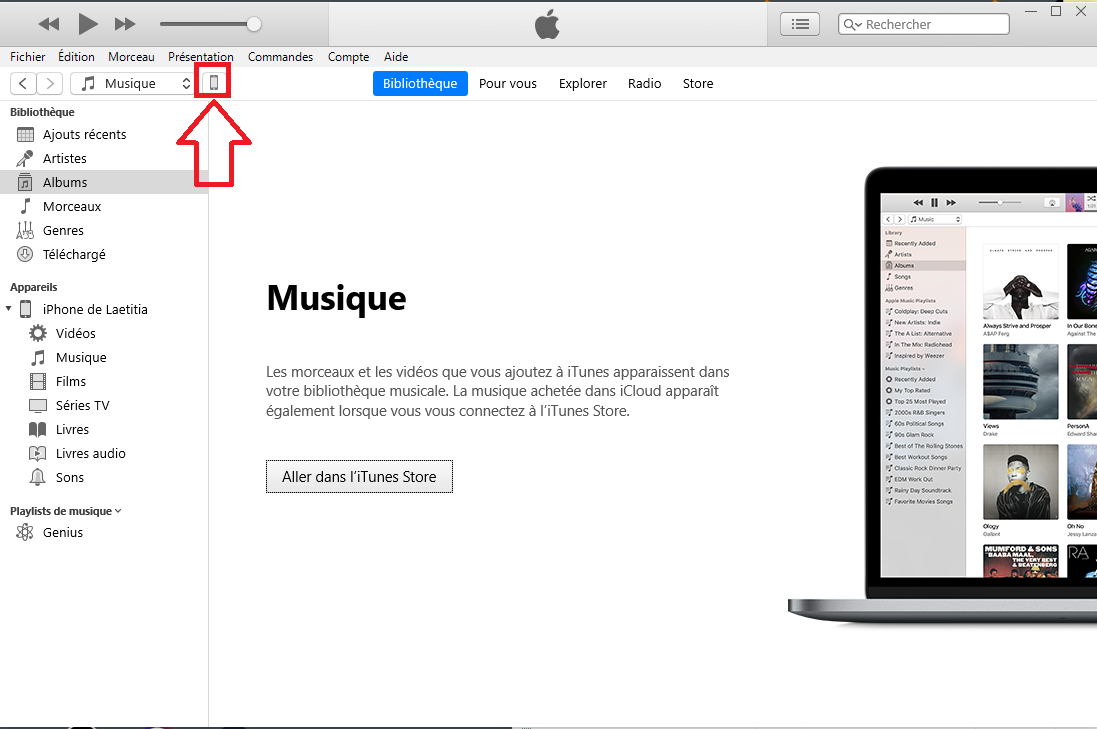
Then click on Share File. Select your version of Heredis and drag and drop the hmwit file :
Disconnect the mobile from the computer.
Step 3 : Open the file in the iOS device
Launch the Heredis app on your iOS device and select the file from the list of files.
-
Share on local network
Share on local network allows you to send your Heredis genealogy file via your Wifi network to a Windows or Mac computer or an Android or iOS mobile device that has the same version of Heredis as your computer.
This function is quite complex, so we provide you with a specific section that allows you to discover it in details. To consult it, click here : Click here